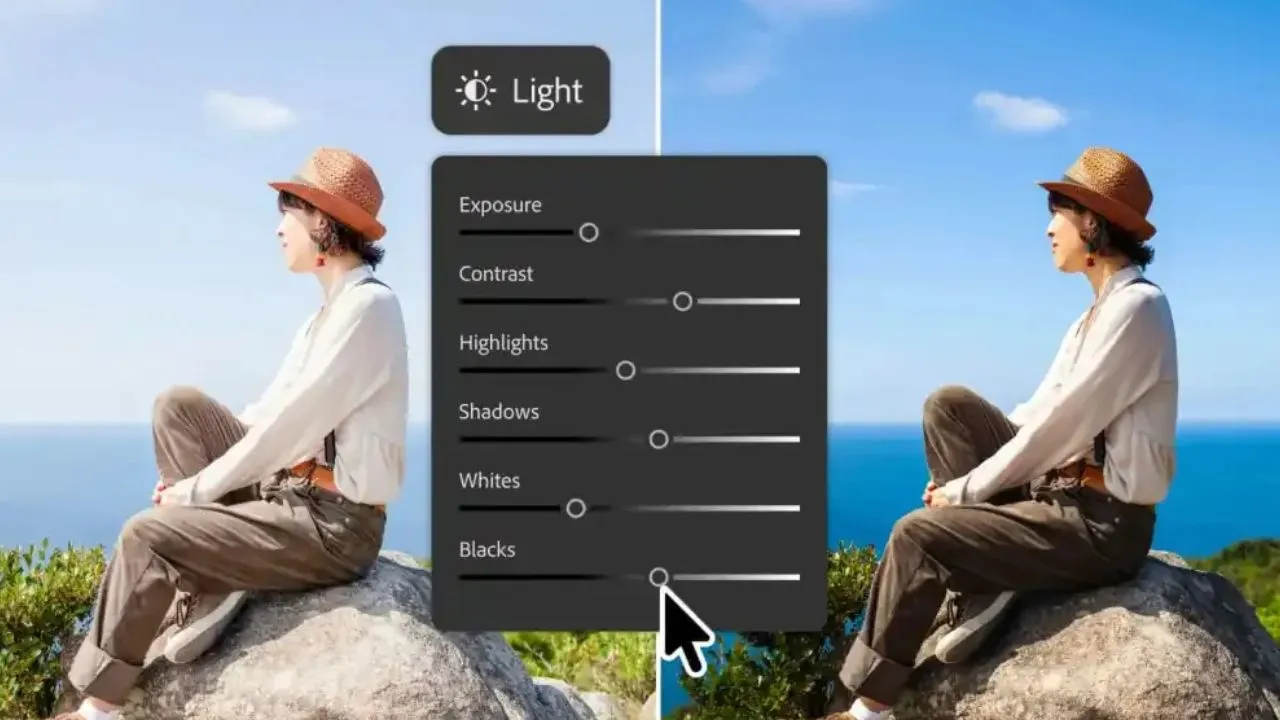
Prompt to Edit is a text-based tool inside Photoshop that changes your whole image when you type a description of what you want. It sits in the Pro Editor, which is the full Photoshop workspace you already know. You do not need to switch to a separate mode or learn a new layout. The feature lives in the Contextual Task Bar, and it creates a new layer every time it runs. That means your original pixels stay untouched while you test ideas. This guide walks through the exact steps, explains what the tool actually does well, and shows you how to write prompts that produce usable results instead of strange artifacts.
What Prompt to Edit Actually Does in the Pro Editor?
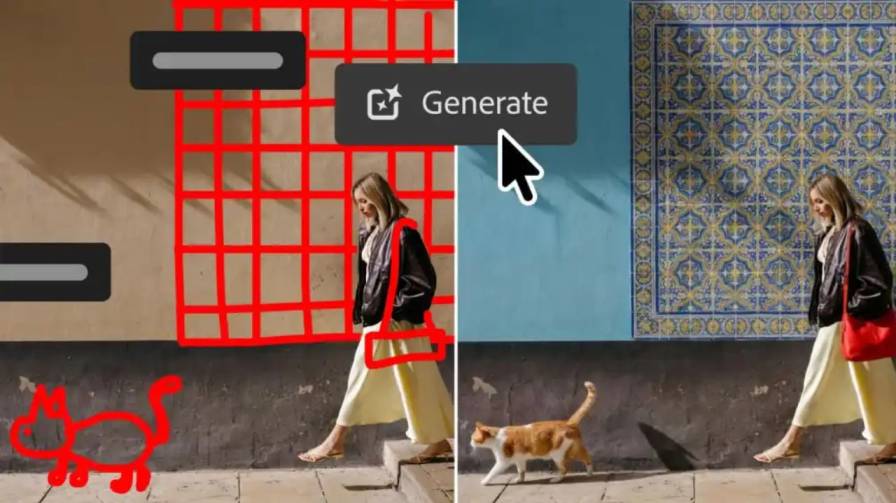
Adobe added Prompt to Edit as a way to make broad changes to an entire image using plain language . You type something like "change the lighting to a warm sunset tone" or "change the season to rainy, add rainfall and puddles," and Photoshop generates variations for you to preview . The key detail is the word "entire." This tool is built for whole-image adjustments. If you only want to change one part of a photo, Adobe directs you to use a selection tool and Generative Fill instead . That distinction matters because many people confuse the two features and end up frustrated when their prompt alters the background they wanted to keep.
The Pro Editor part of the name is important too. Photoshop now has two interfaces: the AI Assisted Editor, which is a simplified beta mode with a prompt bar front and center, and the Pro Editor, which is the complete Photoshop experience with all panels, layers, and precision tools . Prompt to Edit is available in both, but this article focuses on the Pro Editor because that is where most working editors spend their time. In the Pro Editor, the feature appears in the Contextual Task Bar when you have an image open and a pixel or generative layer selected . You can also reach it through the Edit menu .
When you run a prompt, Photoshop does not overwrite your file. It creates a new generative layer containing the result . This is the same non-destructive logic that makes layers useful in every other part of Photoshop. You can hide the layer, lower its opacity, mask parts of it, or delete it entirely if the result is not what you wanted. That safety net is what makes the tool worth experimenting with.
Read Also: How to Design a Flyer in Photoshop: Step-by-Step Guide
Step by Step: Running Your First Prompt Edit
Start by opening your image in Photoshop. Go to File > Open and select the file you want to work on . Once the image is on the canvas, look at your Layers panel. If you have a pixel layer or a generative layer, select it. If you are working with a generative layer, make sure the entire image is selected rather than just a portion . This step is easy to overlook, and skipping it is the most common reason the Prompt to Edit option does not appear.
Now look at the Contextual Task Bar, the floating bar that appears near your selection or at the bottom of the canvas depending on your workspace setup. You should see an option labeled Prompt to edit. Click it . If you prefer menus, you can also go to Edit > Prompt to Edit .
A text field will appear. This is where you describe the change you want. Type a clear sentence about the overall look you are after. Adobe's own examples include "improve overall brightness and contrast" and "change the pose to standing and dancing" . Notice that these prompts describe a result, not a tool. You are not telling Photoshop to use Curves or Hue/Saturation. You are telling it what the final image should look like, and the AI figures out how to get there.
Before you generate, check the model picker dropdown. Photoshop lets you choose between Adobe's Firefly Image 5 and several partner models including FLUX.2 pro, FLUX Kontext pro, Gemini 3.1, Gemini 3, and GPT Image 2 . Different models handle different types of changes with varying degrees of success. If one model produces a result that looks wrong, try the same prompt with a different model before you rewrite the prompt. The model choice is a variable you can control, and it often makes a bigger difference than small tweaks to your wording.
When you are ready, click Generate. Photoshop will process your prompt and produce variations. Preview them, pick the one that works best, and apply it. The result lands on a new generative layer in your Layers panel . From there, you can treat it like any other layer in your document.
Writing Prompts That Produce Usable Results
The quality of your prompt determines the quality of your result. A vague prompt gives the AI too much room to guess, and guessing is where strange artifacts come from. A specific prompt narrows the possibilities and pushes the model toward the change you actually want.
Start with the subject of the change. Are you adjusting light, weather, time of day, a pose, or the overall mood? Adobe's sample prompts are useful because they name the target directly. "Change the lighting to a warm sunset tone" tells the model exactly which attribute to modify . "Improve overall brightness and contrast" names two specific qualities . Compare those to a prompt like "make it look better," which gives the model no direction at all. The AI has no idea what "better" means to you.
Include details about intensity and direction when it matters. "Add rain" is a start, but "add heavy rainfall with visible streaks and puddles on the ground" gives the model more to work with. You do not need to write a paragraph. One clear sentence with two or three concrete details usually outperforms a long, poetic description. The model is looking for actionable attributes, not creative writing.
Keep the scope of the prompt aligned with what the tool does. Prompt to Edit changes the whole image . If you ask it to "change the color of the car" in a photo where the car takes up a small portion of the frame, the model may struggle because the instruction is local but the tool is global. For targeted changes like that, switch to Generative Fill with a selection . The right tool for the right job matters more than forcing one feature to do everything.
Finally, treat your first prompt as a starting point, not a final answer. Generate a result, look at what worked and what did not, and adjust your wording accordingly. If the lighting change came out too strong, add "subtle" or "soft" to the prompt. If the rain looks fake, specify "realistic rainfall." The iteration loop is fast because each generation is non-destructive. You are not risking your original image by trying again.
When to Use Prompt to Edit and When to Use Something Else?
Prompt to Edit is not a replacement for every editing tool in Photoshop. It is a specific solution for a specific problem: making broad, descriptive changes to an entire image without building a complex layer stack by hand. Understanding its boundaries will save you time and frustration.
Use Prompt to Edit when you want to shift the overall mood of a photo, change the apparent weather or season, adjust global lighting, or test a completely different direction for a shot before committing to manual work . It is also useful for quick concept exploration. If you are not sure whether a scene looks better at sunset or in fog, you can generate both versions in a minute and compare them side by side. The new generative layer means you can toggle visibility on and off to see the before and after instantly.
Do not use Prompt to Edit when you need to change one object, remove a person from a group shot, or adjust a small area of the frame. Those tasks call for Generative Fill with a selection or the Remove tool . The distinction Adobe draws is clear: Prompt to Edit is for the entire image, Generative Fill is for selected areas . Ignoring that boundary leads to results where the model alters parts of the image you wanted to keep, which forces you to spend time masking out unwanted changes. It is faster to use the right tool from the start.
Also be cautious with images that contain text, logos, or faces you need to preserve exactly. Whole-image generation can subtly alter details you did not ask it to touch. Even with a careful prompt, the model may reinterpret a face or soften a logo. If those elements are critical, mask them before running the prompt, or plan to composite the generative result with your original using layer masks. The generative layer is a starting point, not a finished product. Professional results come from combining the AI output with manual refinement.
Managing the Result and Keeping Your Workflow Clean
The generative layer that Prompt to Edit creates behaves like any other layer in Photoshop. You can rename it, group it, change its blend mode, and adjust its opacity . This is where the Pro Editor earns its name. The AI gives you a rough version of the change, and you use the full toolset to make it fit your actual image.
The first thing to do after applying a result is to look at it at 100 percent zoom. Generative results can look convincing at fit-to-screen size and fall apart when you inspect the details. Check edges, textures, and areas where the new content meets the original content. If something looks wrong, you have options. You can mask out the problematic area on the generative layer, revealing the original underneath. You can lower the layer opacity to blend the new look with the old one. Or you can generate again with a revised prompt.
If you are working on a client project or any image where consistency matters, save your prompt. Photoshop does not automatically store a history of the text you used, so keep a note somewhere if you think you will need to regenerate a similar result later. This is especially useful when you are testing multiple models or iterating on wording. A prompt that worked well on one image is a valuable asset for the next one.
Finally, remember that the Pro Editor is a layered workspace. The generative layer from Prompt to Edit is one piece of the document. You can add adjustment layers on top of it, paint on masks, or use the new Light Adjustment Layer that Adobe added alongside these AI features to fine-tune exposure, contrast, and shadows without leaving Photoshop . The AI handles the broad stroke. You handle the precision. That division of labor is what makes the feature useful for real work rather than just demos.
You May Also Like: Photoshop AI Tools Tutorial: The Ultimate 2026 Guide for Beginners
A Quick Word on Models and Updates
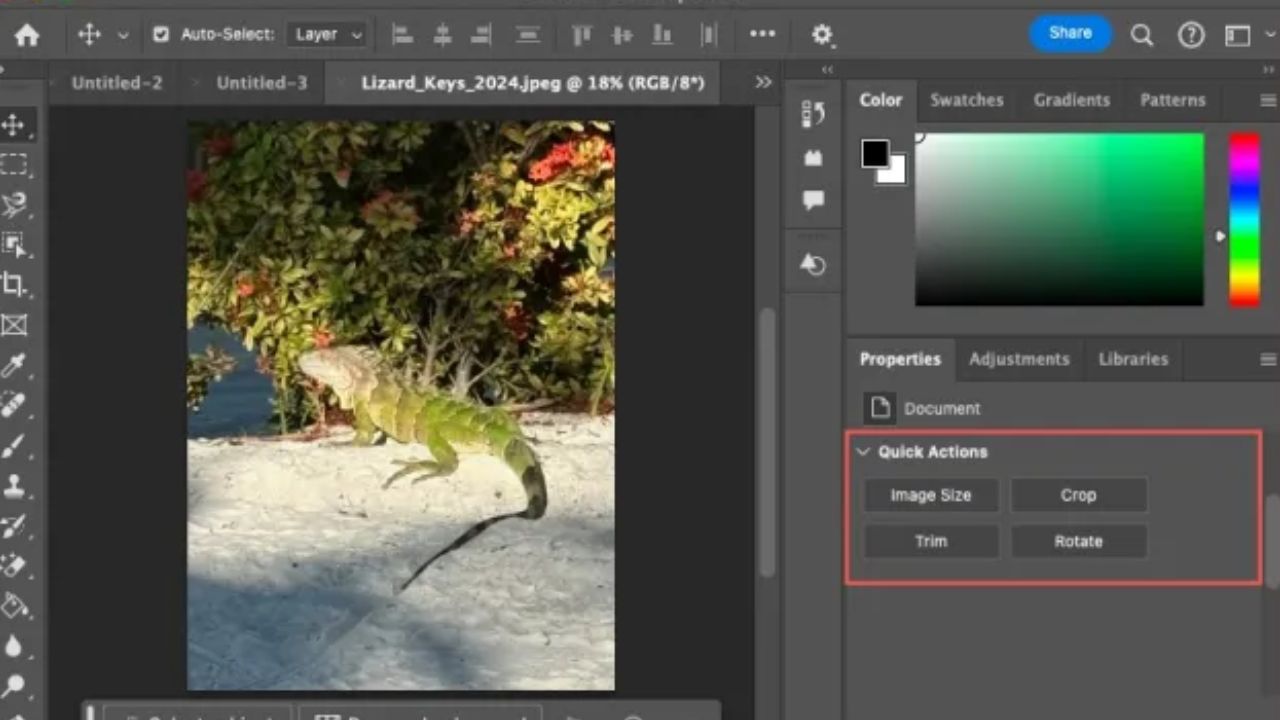
The model you choose from the dropdown affects the result more than most people expect. Firefly Image 5 is Adobe's own model and tends to integrate smoothly with Photoshop's color and texture handling. Partner models like FLUX and Gemini bring different strengths and weaknesses . There is no single best model for every prompt. A model that excels at lighting changes may struggle with pose changes, and vice versa. The practical approach is to try your prompt on two models when the first result disappoints you, rather than assuming your prompt is the problem.
Adobe also updates the available models regularly. The help documentation notes that Google is deprecating Gemini 2.5 starting in October 2026, and Photoshop will remove support for that model in subsequent builds . If you rely on a specific model for a recurring task, check the model list periodically to make sure it is still available. The feature is evolving quickly, and the options you see today may change.
Final Thoughts
Prompt to Edit in the Photoshop Pro Editor is a practical tool for a specific job: describing a whole-image change and letting the AI generate a version you can refine. It is not magic, and it is not a replacement for selections, masks, and manual adjustments. The editors who get the most from it are the ones who treat it as a first step rather than a final answer. They write clear prompts, choose their model deliberately, and then use the full power of the Pro Editor to turn a rough generative result into something polished.
Start with a simple lighting or weather change on an image you know well. Watch how the model interprets your words. Adjust one variable at a time. Keep the generative layer intact so you can compare and revert. Within a few attempts, you will develop a feel for what the tool does well and where its limits are. That understanding is worth more than any list of sample prompts, because it lets you adapt to whatever image you are working on next.