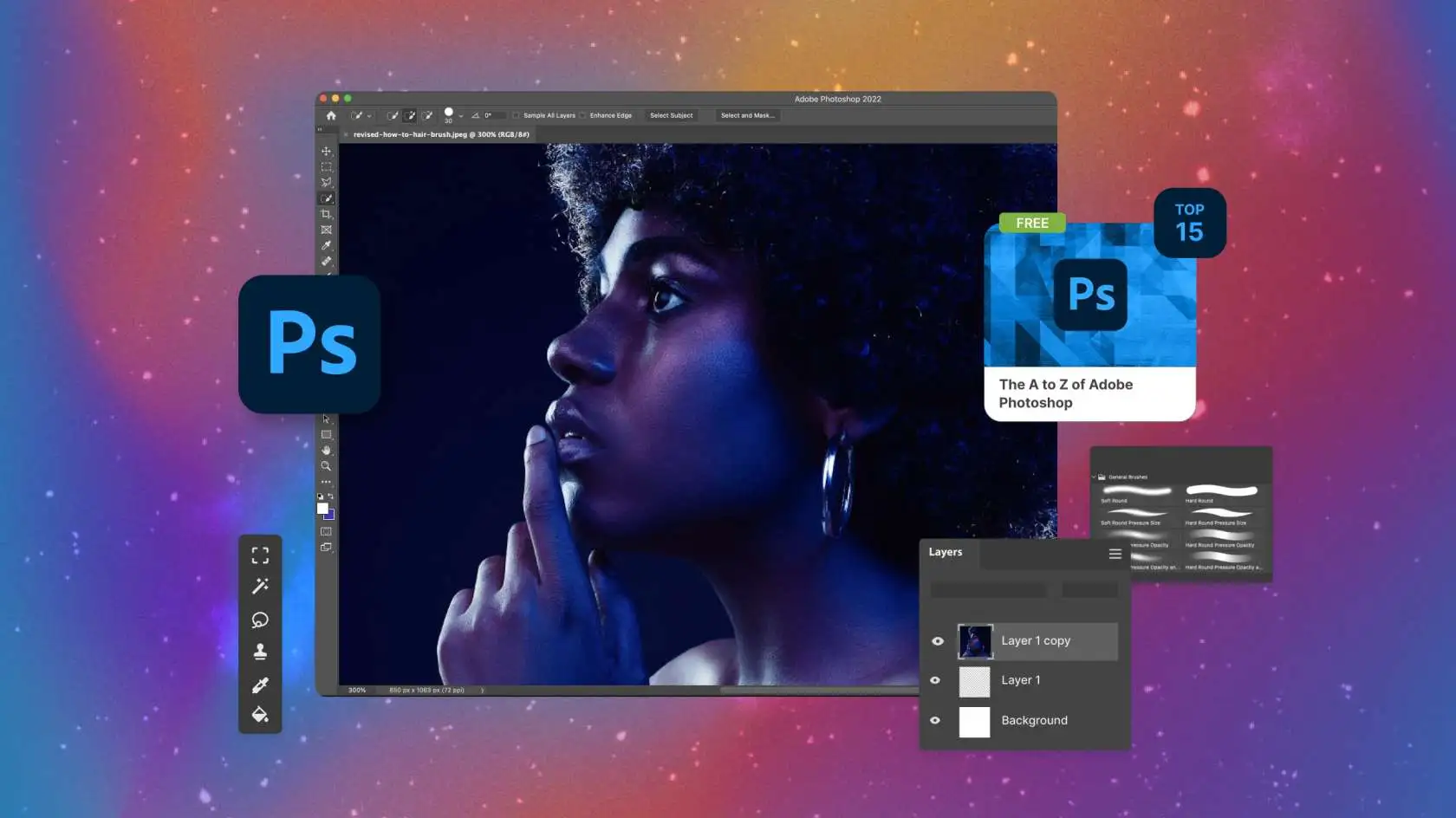
You just opened Adobe Photoshop for the first time and your screen looks like a spaceship control panel. Too many buttons, sliders, panels, and tools everywhere. I remember that feeling. Everyone starts there. Here is the truth most people will not tell you. You do not need to learn everything in Photoshop to create amazing work. Professional designers use maybe twenty percent of what this software can do. The rest stays hidden until you need something very specific.
This Adobe Photoshop tutorial for beginners walks you through exactly what matters first. No fluff. No confusing terms. Just straight talk about how to open the program, pick the right tools, and make your first edit that actually looks good.
What Is Photoshop and How to Use It Without Losing Your Mind
Photoshop is a program that lets you change images in almost any way you can imagine. You remove unwanted objects, fix colors, combine multiple photos, add text, retouch skin, and create artwork from scratch. The software works with layers, which are like stacking transparent sheets on top of each other.
Think of layers like making a sandwich. Your background photo is the bottom bread. Each edit goes on a new layer above it. You can remove or change any layer without messing up the others underneath. This is the most important concept to understand.
How Long Does It Take to Learn Photoshop for Real Work
This question comes up in every beginner conversation. How long does it take to learn Photoshop well enough to do actual projects. You learn the basics in one weekend. That means you crop images, adjust brightness and contrast, remove small objects, and add simple text. You do real edits by Sunday night.
You become comfortable in two to three weeks of regular practice. Spend thirty minutes each day opening photos and trying different tools. By week three, you work without looking up every single step.
You get genuinely good in three to six months. This is when edits start looking professional. You remove complex backgrounds cleanly. You match colors between different photos. You retouch portraits without making people look like plastic dolls.
You may also read :- Learn Photoshop Step by Step: Full Tutorial with Pictures
How to Start Learning Photoshop in 2026 with Zero Experience
Open Photoshop and look at the left side first. That is the toolbar. The right side shows your panels. The top holds your menus and options bar. The middle is your canvas where you work. Here is your exact roadmap for how to start learning Photoshop in 2026.
Week one - Get comfortable moving around
Open any photo from your phone or computer. Practice zooming in and out with Control+plus and Control+minus. Hold the spacebar to pan around when zoomed in. Try the Move tool at the top of the toolbar to drag your image around.
Week two - Learn the three tools that fix most photos
The Crop tool cuts your image to a better size. The Spot Healing Brush removes pimples, dust spots, and small objects. The Brush tool paints color onto your image. Master these three before touching anything else.
Week three - Understand adjustments
Go to Image > Adjustments > Brightness/Contrast. Move the sliders left and right. Then try Levels and Curves. These change how light or dark your image looks. They also fix color problems.
Week four - Play with selections
The Rectangular Marquee tool selects square areas. The Lasso tool selects freehand shapes. The Magic Wand selects similar colors. Selections let you edit only part of your image while leaving the rest alone.
Which Photoshop Tools Should Beginners Learn First
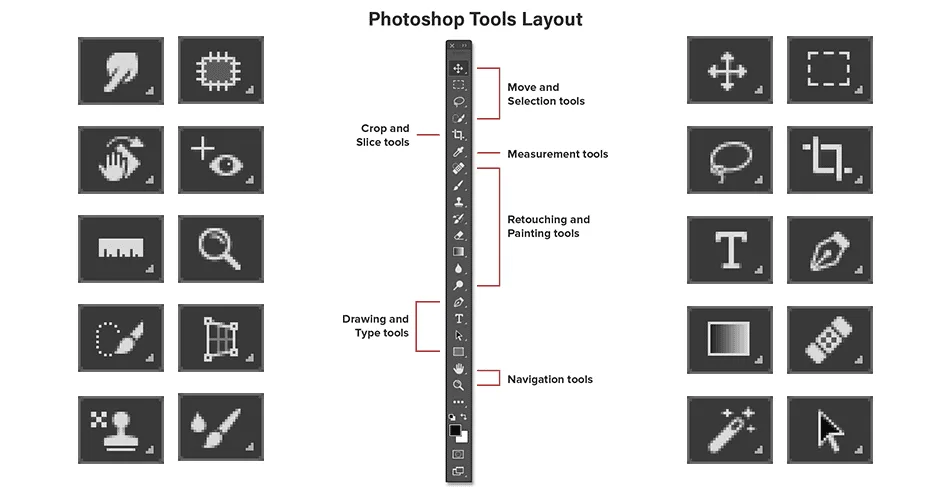
Let me save you months of confusion. Which Photoshop tools should beginners learn first comes down to eight tools that handle ninety percent of everyday editing work.
| Tool Name | What It Does | When to Use It |
|---|---|---|
| Move Tool | Moves layers and objects around | Every single project |
| Crop Tool | Trims and straightens images | Fixing composition |
| Brush Tool | Paints colors and details | Adding or hiding things |
| Spot Healing Brush | Removes spots and small objects | Cleaning up photos |
| Clone Stamp | Copies one area to another | Removing bigger objects |
| Gradient Tool | Creates smooth color blends | Backgrounds and skies |
| Text Tool | Adds words to your image | Titles and captions |
| Eyedropper Tool | Picks up colors from your image | Matching exact colors |
Learn these tools in this order. Practice each one for fifteen minutes on different photos. The Spot Healing Brush feels like magic when you first use it. Click once on a dust spot and it disappears. Click on a pimple and it blends into skin. Click on a power line in a sky photo and the line vanishes.
Complete Photoshop Course for Beginners and Advanced Users in One Simple Path
Most people search for a complete Photoshop course for beginners and advanced users but find either too basic or way too advanced. Here is the path that takes you from opening the program to doing professional work.
Beginner stage - Do these five things
Crop a photo to a perfect square. Remove three blemishes from a face. Change a blue sky to a sunset orange. Add your name in white text on a dark background. Save your file as both a PSD for editing later and a JPG for sharing online.
Intermediate stage - Add these five skills
Cut out a person from one background and place them onto another. Fix an underexposed photo so you see details in the shadows. Change someone's shirt from red to green. Blend two landscape photos together so they look like one image. Create a drop shadow under your text so it pops off the page.
Advanced stage - Work on these five projects
Retouch a portrait removing all skin imperfections while keeping natural texture. Replace a boring sky with a dramatic storm cloud sky. Colorize a black and white photo with realistic skin and clothing colors. Design a movie poster with layered text effects. Create a composite image combining five different photos that look like they were shot together.
Learn Photoshop Fast for Beginners 2026 with This Daily Practice Routine
Want to learn Photoshop fast for beginners 2026 without spending months guessing. Do this fifteen minute practice every day for thirty days.
Day one to five - Open a different photo each day. Zoom, pan, and move the image around. Use the Crop tool to try different aspect ratios. Save each cropped version.
Day six to ten - Find photos with dust spots or small distractions. Use the Spot Healing Brush on every mark you see. Zoom in close to see your results. Undo and try again if the fix looks wrong.
Day eleven to fifteen - Practice making selections. Use the Magic Wand on a blue sky. Use the Lasso around a coffee cup. Copy your selections to new layers with Control+J.
Day sixteen to twenty - Work with the Brush tool. Paint black on a layer mask to hide things. Paint white to bring them back. This is how professionals do non-destructive editing.
Day twenty one to twenty five - Adjust brightness and contrast on ten different photos. Push sliders too far so you see what breaks an image. Then dial back to find the sweet spot.
Day twenty six to thirty - Combine everything. Take one photo and crop it, remove a distraction, adjust the lighting, and add text. Do this once each day on a new image.
Photoshop Basic to Advanced Tutorial 2026 Guide
This Photoshop basic to advanced tutorial 2026 section shows you the exact progression path from opening the program to creating work that impresses clients.
Basic level tasks
- Open any image file
- Create a new blank document
- Save files in different formats
- Undo mistakes with Control+Z
- Use the History panel to go back multiple steps
- Change canvas size without changing image size
- Rotate and flip images
- Resize images smaller and larger
Medium level tasks
- Work with adjustment layers instead of direct adjustments
- Use layer masks to hide and reveal parts of an image
- Add layer styles like drop shadows and glows
- Create and save your own custom brushes
- Use the Pen tool to make perfect curved selections
- Apply filters like blur and sharpen
- Match colors between two different photos
Advanced level tasks
- Use blend modes to combine layers in creative ways
- Work with smart objects for non-destructive transforms
- Create actions to automate repetitive tasks
- Use channels to make complex selections
- Apply frequency separation for professional retouching
- Work with 3D objects and textures
- Create animated GIFs and timeline animations
Most people never need advanced skills. Basic and medium cover everything for social media graphics, product photos, real estate images, and personal photo editing.
How to Use Adobe Photoshop 2026 for Editing Your First Photo
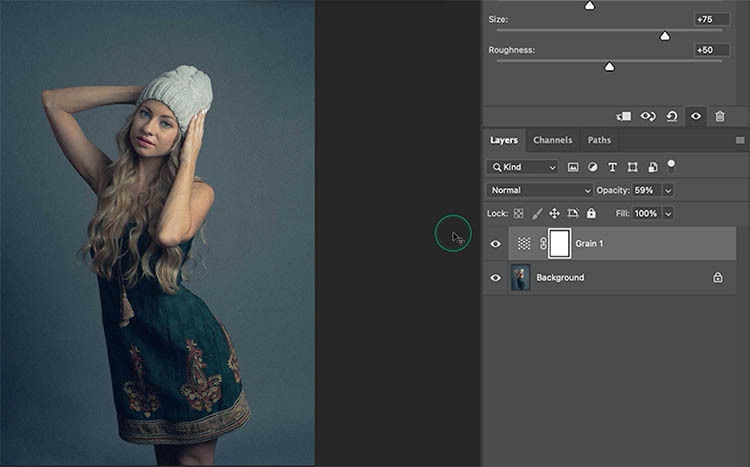
Let me walk you through how to use Adobe Photoshop 2026 for editing one photo from start to finish. Open your photo by dragging it into the Photoshop window. Look at the Layers panel on the right. Your photo sits on a layer called Background. Press Control+J to duplicate this layer. Now you work on the copy.
Check if your photo needs cropping. Maybe the horizon tilts to one side. Select the Crop tool from the toolbar. Drag the corners to frame your shot better. Press Enter when happy. Look for small distractions next. Use the Spot Healing Brush. Make the brush slightly bigger than the spot you want to remove. Click once. The spot disappears. Do this for dust spots, power lines, skin blemishes, or small trash on the ground.
Save your work. Go to File > Save As. Choose Photoshop PSD as the format to keep your layers. Then go to File > Export > Save for Web and choose JPG to share online.
Common Beginner Mistakes That Waste Your Time
You avoid years of frustration by knowing these mistakes before you make them.
- Editing on the background layer - Always duplicate your background first. Press Control+J right after opening any photo. This saves you when you make a mistake.
- Using too much saturation - Beginners turn the saturation slider all the way up because bright colors look exciting. The result looks like a cartoon. Increase saturation by ten percent at most.
- Forgetting to zoom in - Small mistakes hide at normal zoom. Zoom to one hundred percent or more when removing spots or painting details. What looks clean at fifty percent looks messy at full zoom.
- Saving over your original - Always save edited photos as new files. Keep your original photo untouched. You might want to start over later.
- Learning every tool before doing anything - You learn Photoshop by doing, not by watching. Open a photo and try things. Make ugly edits on purpose just to see what each button does.
FAQ About Learning Photoshop in 2026
How to learn Photoshop in 2026 step by step with no experience
Start with the Move, Crop, and Spot Healing Brush tools. Practice on your own photos for fifteen minutes daily. Duplicate your background layer before editing. Adjust brightness with Levels. Add text with the Text tool. Save as PSD to keep layers and JPG for sharing. Move to selections and layer masks after two weeks of comfortable basic edits.
Can I learn Photoshop completely free without paying for courses
Yes. Adobe offers free tutorials on their website. YouTube has thousands of free Photoshop tutorials. Search for specific tasks like remove background Photoshop or change eye color Photoshop. Practice on your own photos while watching. Avoid courses that promise mastery in one hour. Real learning takes practice time, not expensive courses.
Is Photoshop hard to learn for someone who never edited photos before
Photoshop feels overwhelming at first because you see so many tools. The basic tools work simply. Click a brush and paint. Click a crop tool and drag the edges. Most beginners make their first good edit within one hour. The difficulty comes from advanced features you do not need yet. Learn ten tools well and you edit almost anything.
What is the best version of Photoshop for beginners in 2026
Get the latest Photoshop version through Adobe Creative Cloud. The one month subscription costs about as much as two coffee shop visits. Adobe updates the software constantly with new features. Old versions lack the Remove tool and improved Neural Filters that make editing easier for beginners. Do not buy older versions from third party sellers.
Which Photoshop tools should beginners learn first for photo editing
Learn these eight tools in this order. Move Tool for arranging layers. Crop Tool for trimming edges. Spot Healing Brush for removing spots. Brush Tool for painting. Clone Stamp for copying areas. Gradient Tool for smooth blends. Text Tool for adding words. Eyedropper for picking colors. These eight tools handle most everyday photo editing tasks.
Your First Step Right Now
Close this article and open Photoshop. Find any photo on your computer. Press Control+J to duplicate the layer. Grab the Spot Healing Brush and remove something small. Then press Control+S to save.
That single action does more for your learning than reading ten more articles. Photoshop rewards people who click buttons and make mistakes. Every professional you admire started exactly where you are right now.